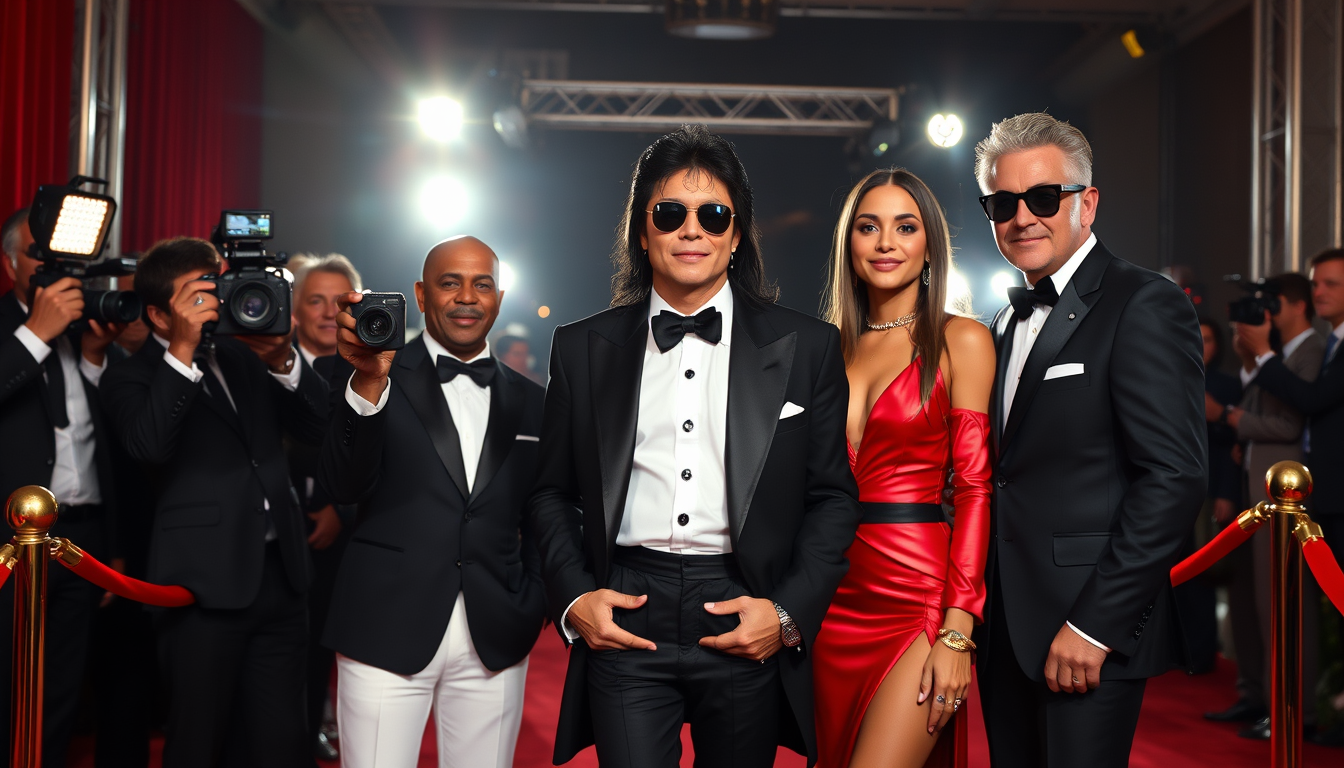
“Create a realistic red-carpet event photo featuring Michael Jackson and the members of KATSEYE together, posing for photographers at a glamorous awards ceremony. Michael Jackson is wearing an iconic black-and-white formal outfit, while the KATSEYE members wear coordinated high-fashion red-carpet looks. Bright camera flashes, velvet ropes, elegant backdrop, candid celebrity-event atmosphere, full-body group photo, professional photography, realistic lighting and details.”
REAL OUTPUTS · BROWSE BY TOOL
AI Art Examples Made by Real Visitors
Browse every eligible image shared by FreeArtGen visitors, filter by tool, read the exact prompts, and make your own version.
Browse 12648 real creationsCOMMUNITY OUTPUTS · EXACT PROMPTS
All visitor creations
Showing 8761–8784 of 12648. No stock examples or system defaults. Choose a tool, study a real result, then reopen its prompt as your starting point.

Create a image of tiger on status of liberty
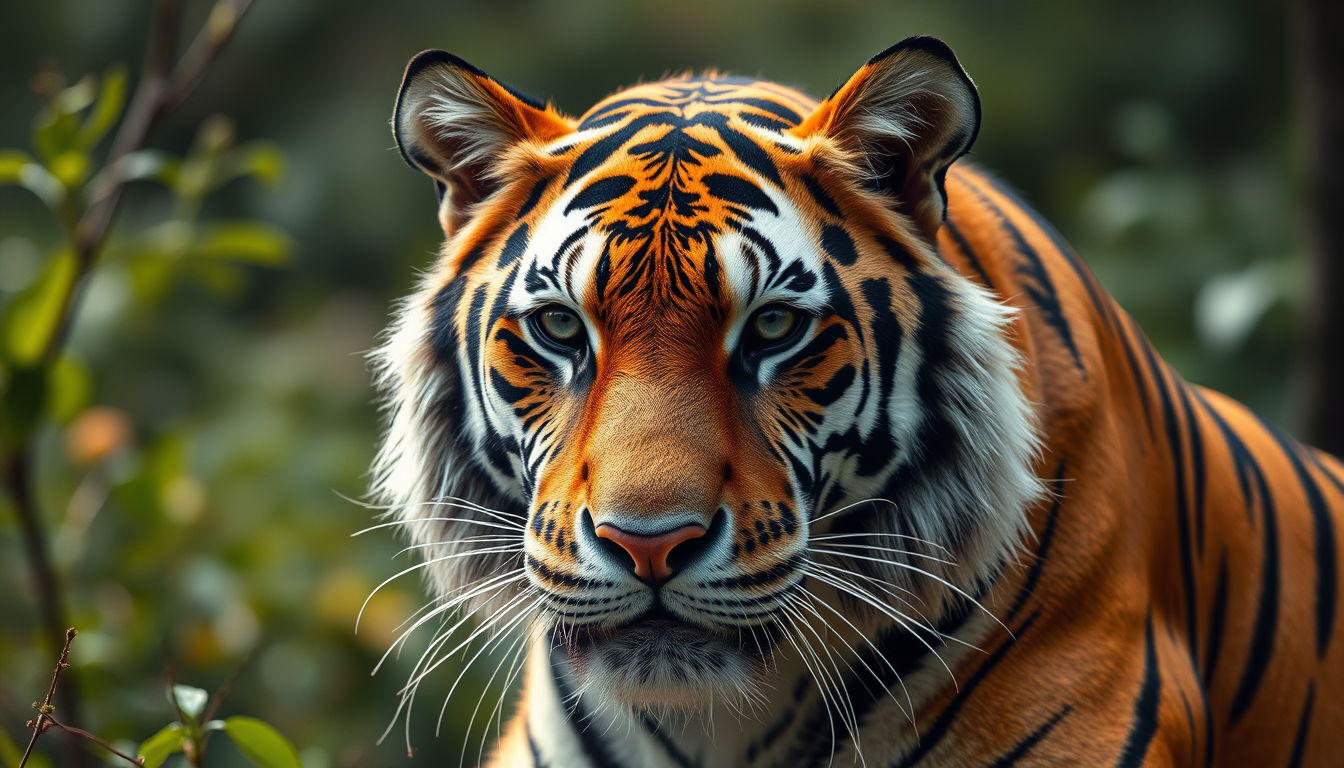
Create a image of tiger
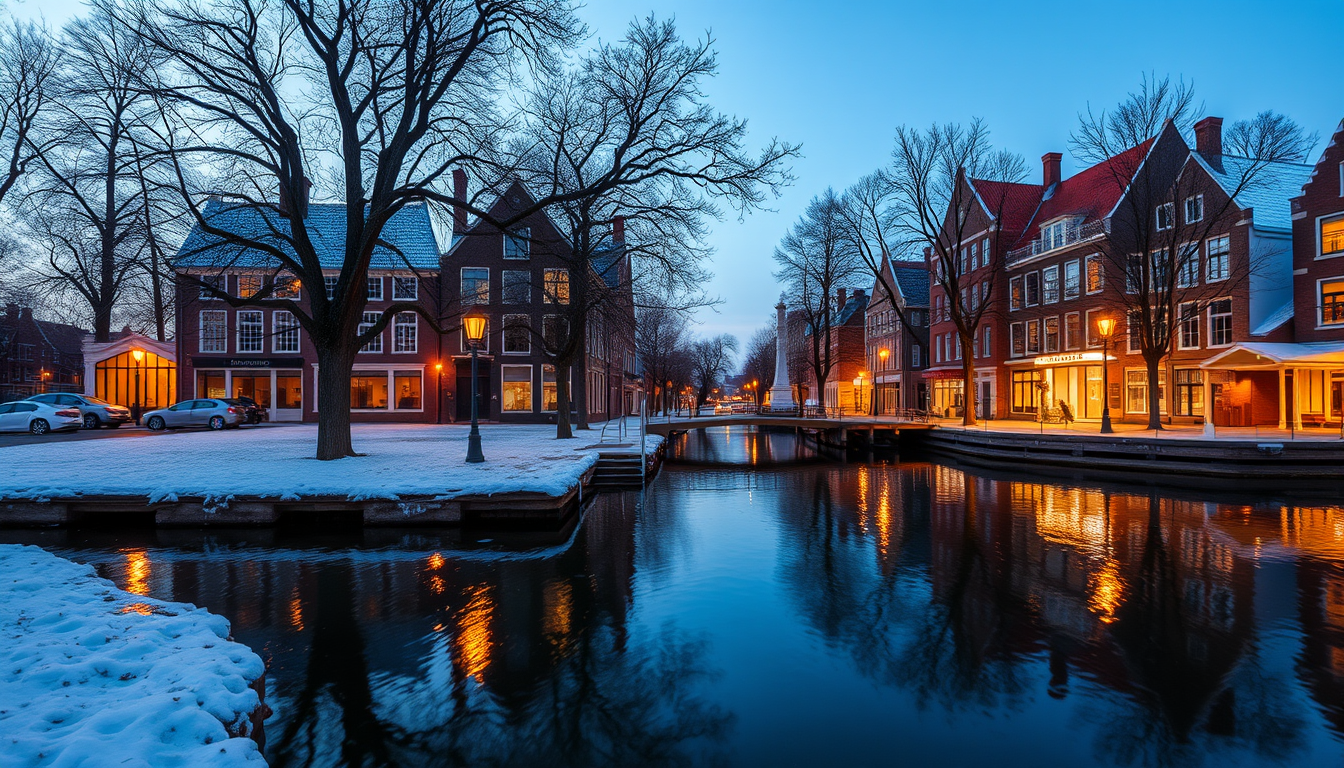
Create a image of tiget here
Create ara domestic image any
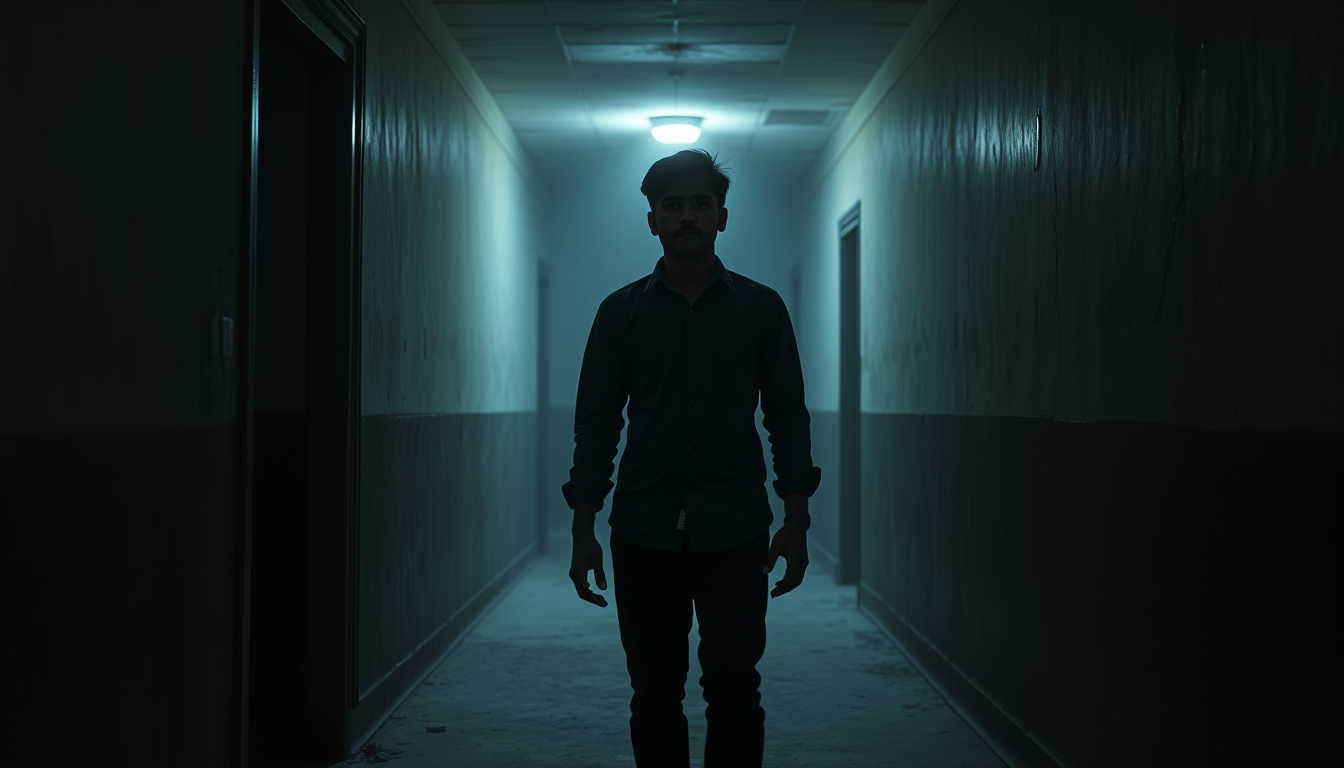
A cinematic realistic horror scene in an abandoned hotel corridor at midnight, a young Indian man around 25 years old standing alone in the center of the dark corridor, wearing a dark blue full-sleeve shirt and black pants, frightened expression, looking toward a mysterious half-open room at the end of the corridor, old dirty walls, flickering ceiling light, deep shadows, slight fog, eerie atmosphere, realistic Indian horror movie style, dramatic lighting, highly detailed face, photorealistic, cinematic composition, vertical 9:16, no text, no watermark

fictional fashion editorial, coherent garment silhouette and fabric behavior, intentional styling, fait moi une fée avec une robe rouge , natural pose, polished set design, directional editorial lighting

Fait moi une licorne
大砲とサメが完全に一体化した怪物。サメの体そのものが巨大な大砲になっている。サメの頭、胴体、ヒレ、大砲が一つの生物として融合している。背中から巨大な砲身が生えていて、口の中にも砲身がある。大砲とサメを別々に置かない。必ず一つのクリーチャーとして融合させる。深緑と黒、白く光る目、巨大な怪物、奇妙でコミカルなブレインロット風、3Dゲームキャラクター。
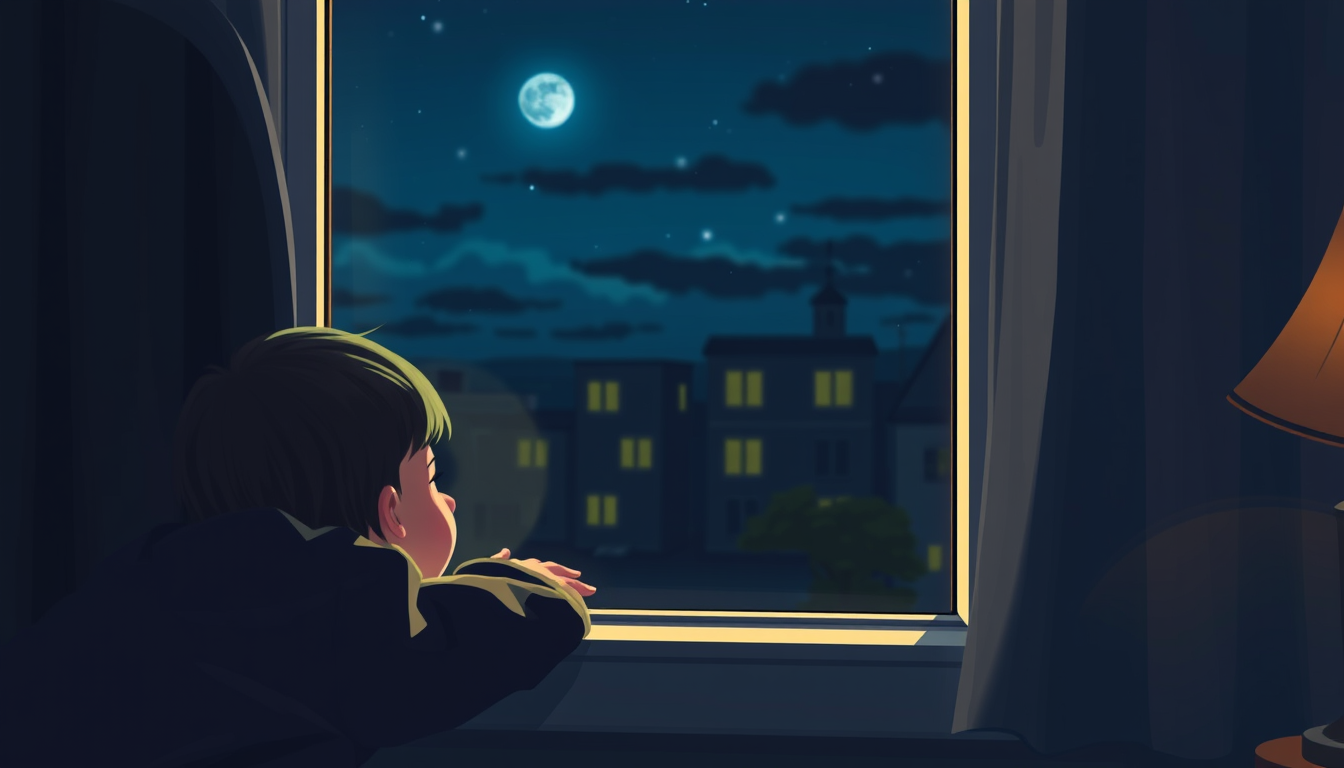
at night in the room, a child looks out the window, his face is not visible, he hangs on top, next to him another child looks with admiration
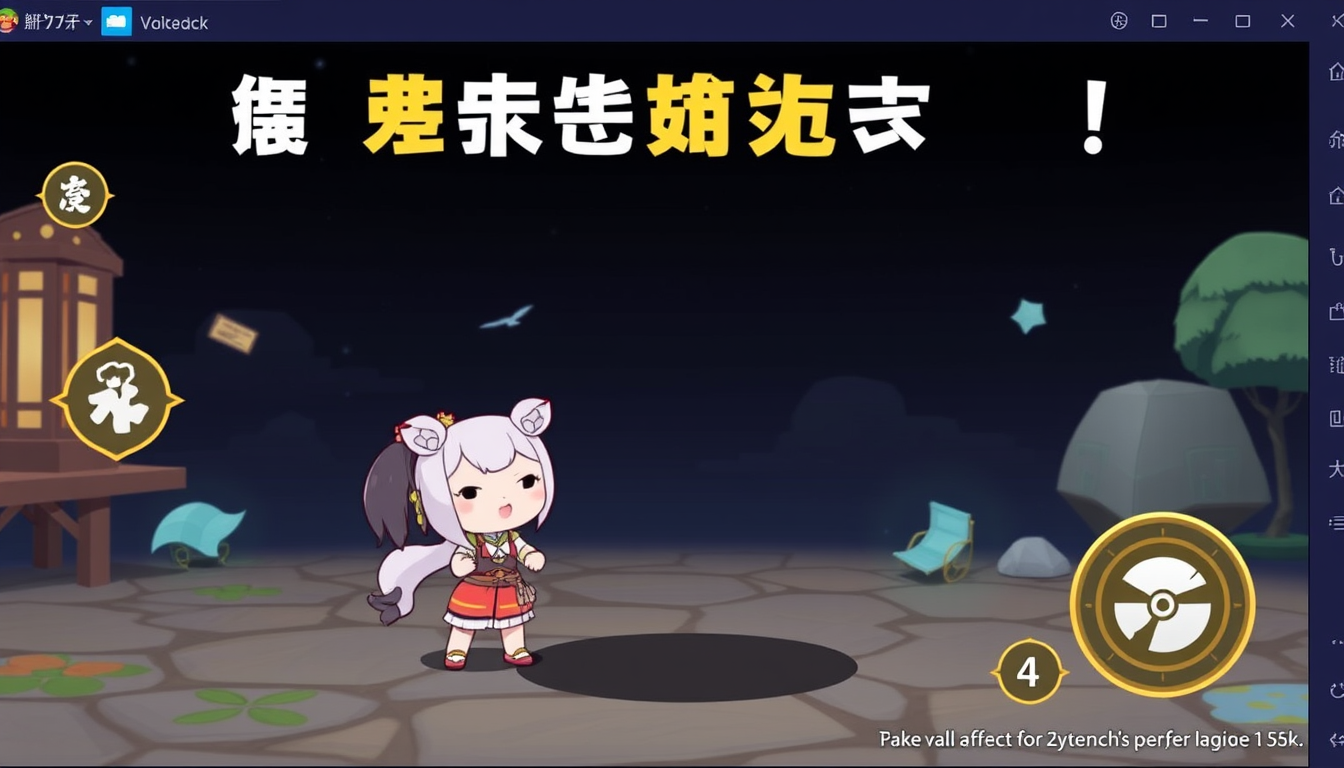
フォートナイトブレインロットのキャラを作りたくて大砲とサメを合体させたブレインロットを作りたい

kechasi xonada bir bola deraza tomonga qarab turibdi, uning yuzi ko'rinmayabdi, u tepada muallaq turibdi, yonida boshqa bola hayratlanib qarab turibdi
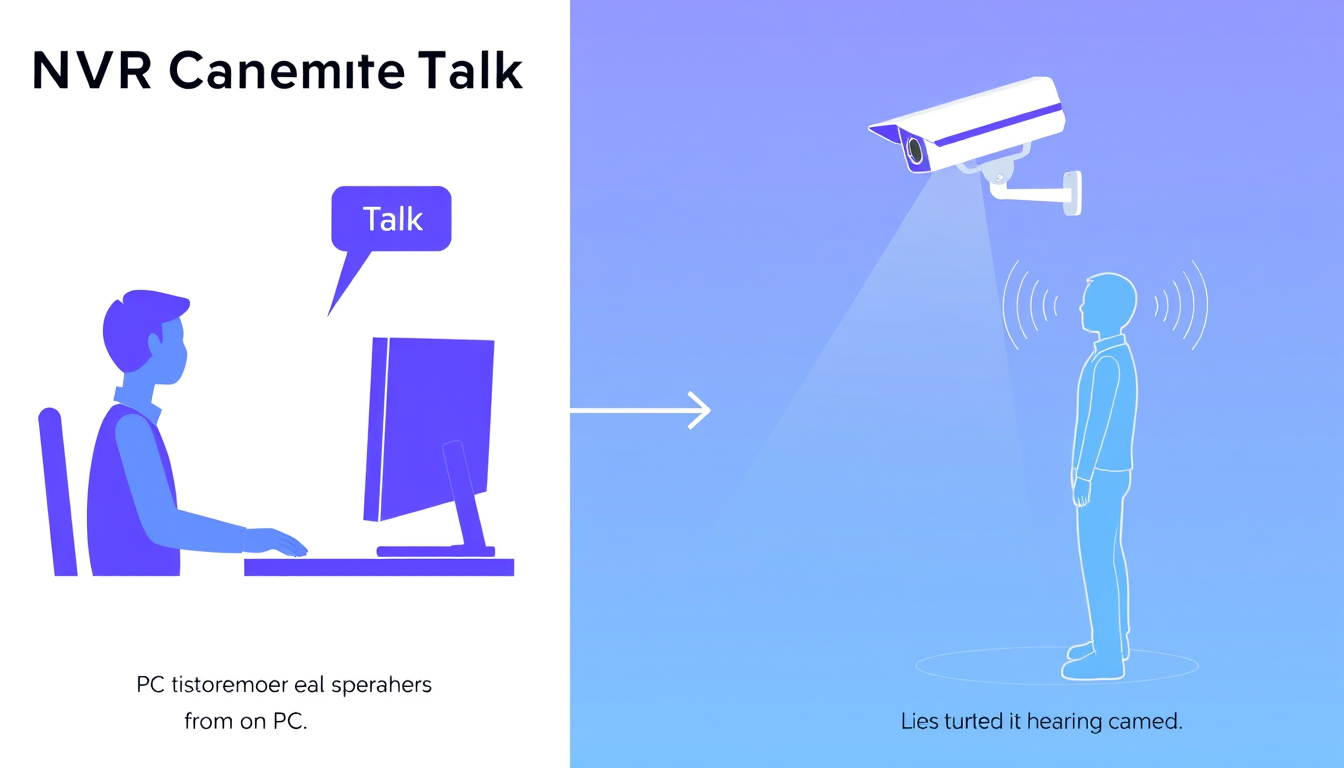
Create a clean 2D NVR Camera Talk workflow. On the left, one person sits at a PC and clicks the highlighted “Talk” button. On the right, show another person standing, with an NVR security camera mounted above them, pointing down toward the person like a real surveillance camera. The camera has a built-in speaker. Show sound waves from PC → camera speaker → person hearing. One PC only, professional blue-purple vector style, white background.
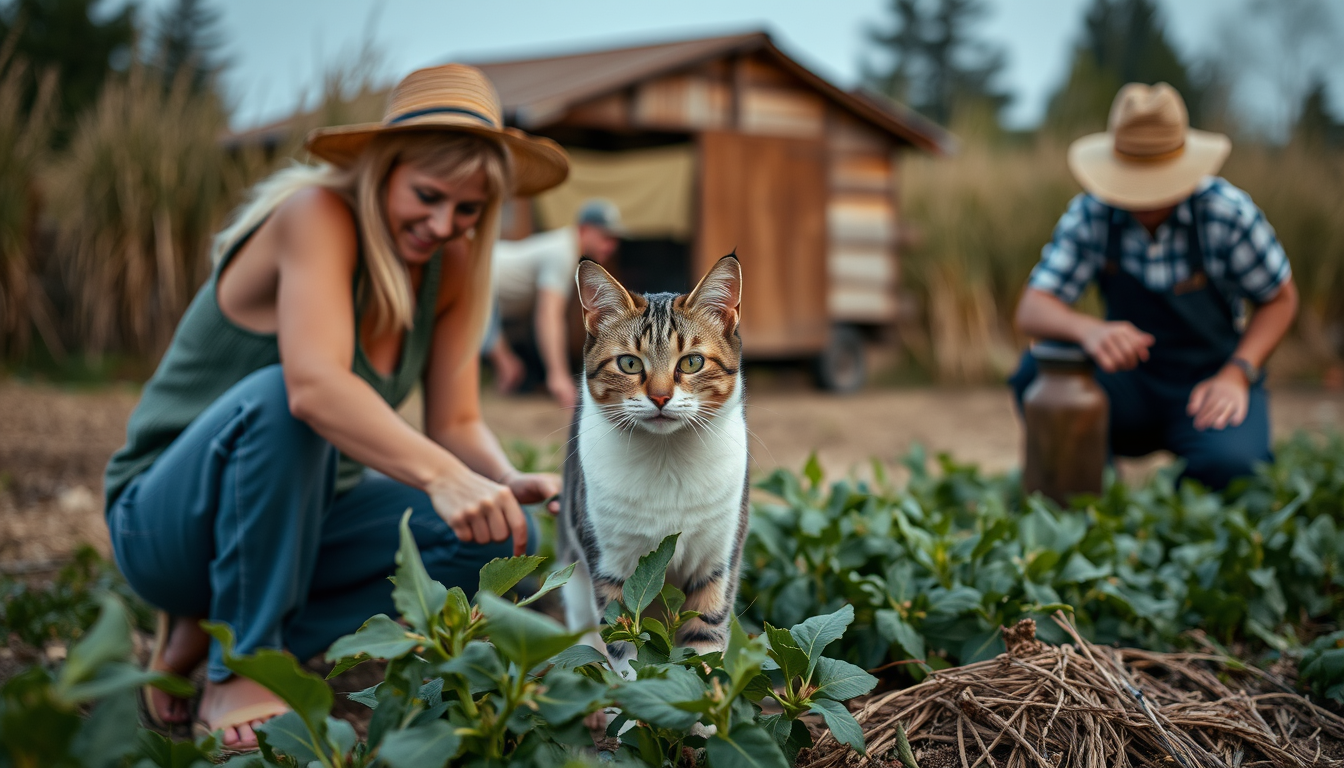
Cat isgo for cut the crop with farmer then after return she go for party with her friends
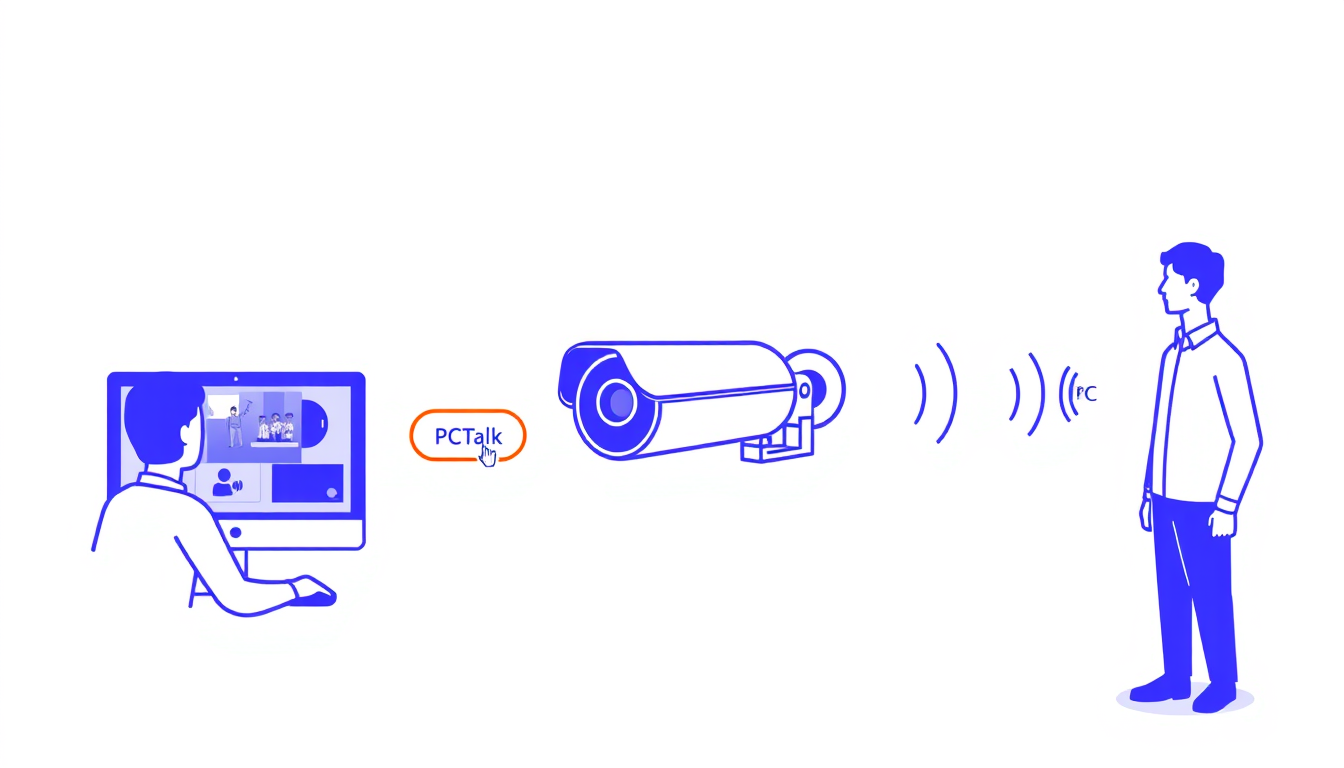
Create a clean 2D workflow for an NVR Camera Talk feature. Left: one person sitting at a PC, viewing the camera feed and clicking a highlighted “Talk” button. Center: one NVR security camera with a speaker. Right: another person standing near the camera and hearing the voice. Show sound waves flowing PC → camera speaker → person. Only one PC. Professional blue-purple vector style, white background, simple and clear.
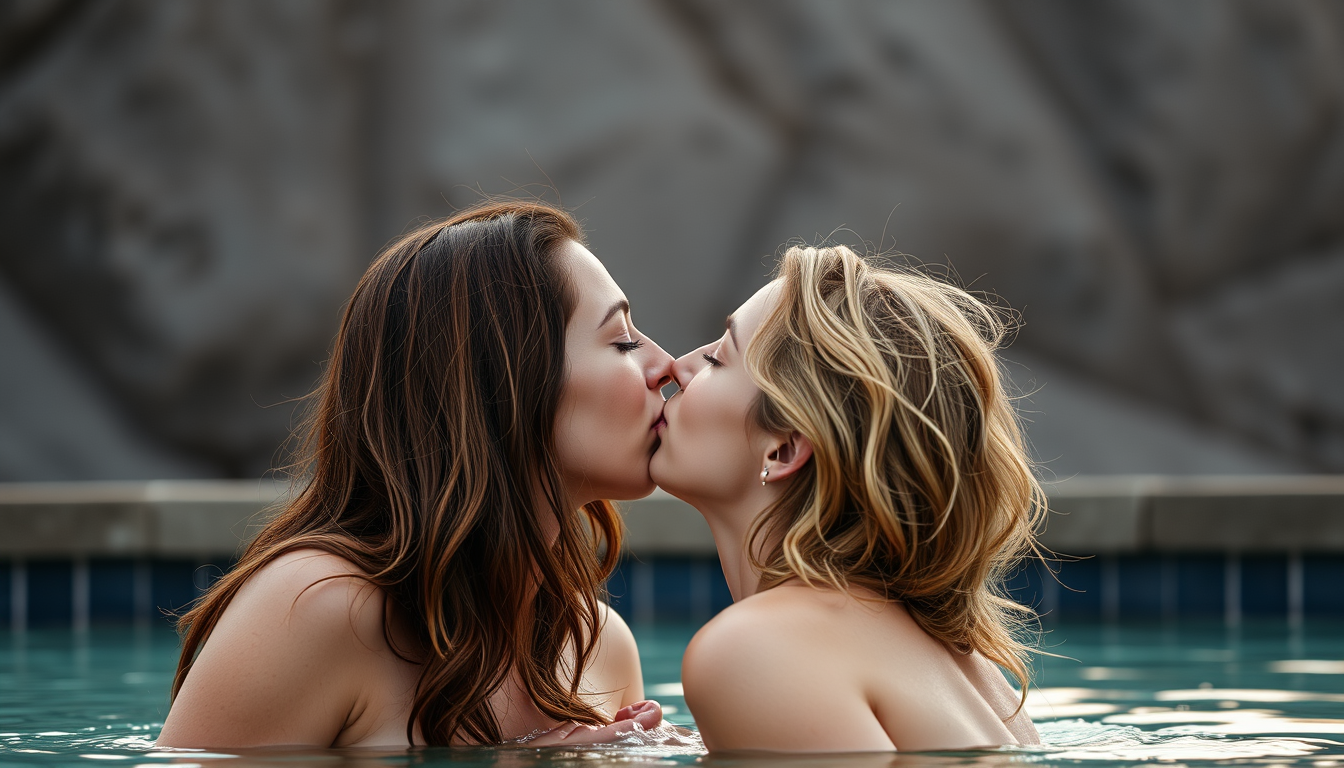
Neked women kiss

Soviet-era vintage propaganda-inspired emblem, red and dark burgundy background, golden USSR-inspired ornamental details, subtle Soviet architecture and warm nostalgic atmosphere, elegant classic typography, large clear Russian text exactly: «ЭПОХА МУДРОСТИ», smaller text: «СССР», centered composition, highly detailed, cinematic, vintage poster aesthetic, clean readable lettering, square 1:1, designed as a YouTube channel avatar
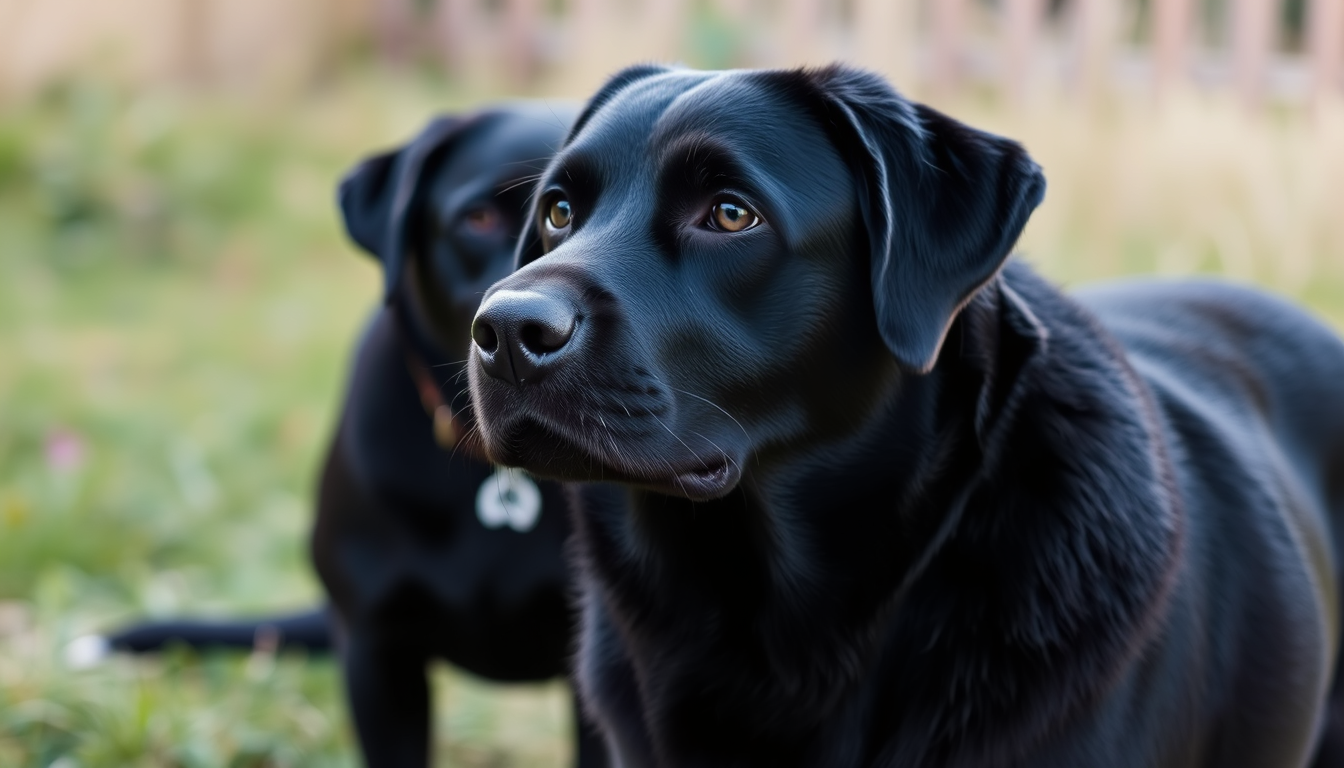
Du skal bare lave en one line billede/omridset af 3 labradorer den ene labrador skal være en lille smule mindre end de 2 andre. 1 kat .1 han yorkshire terrier og en broholmer der stadig er lidt hvalpet men længere end en hvalp.
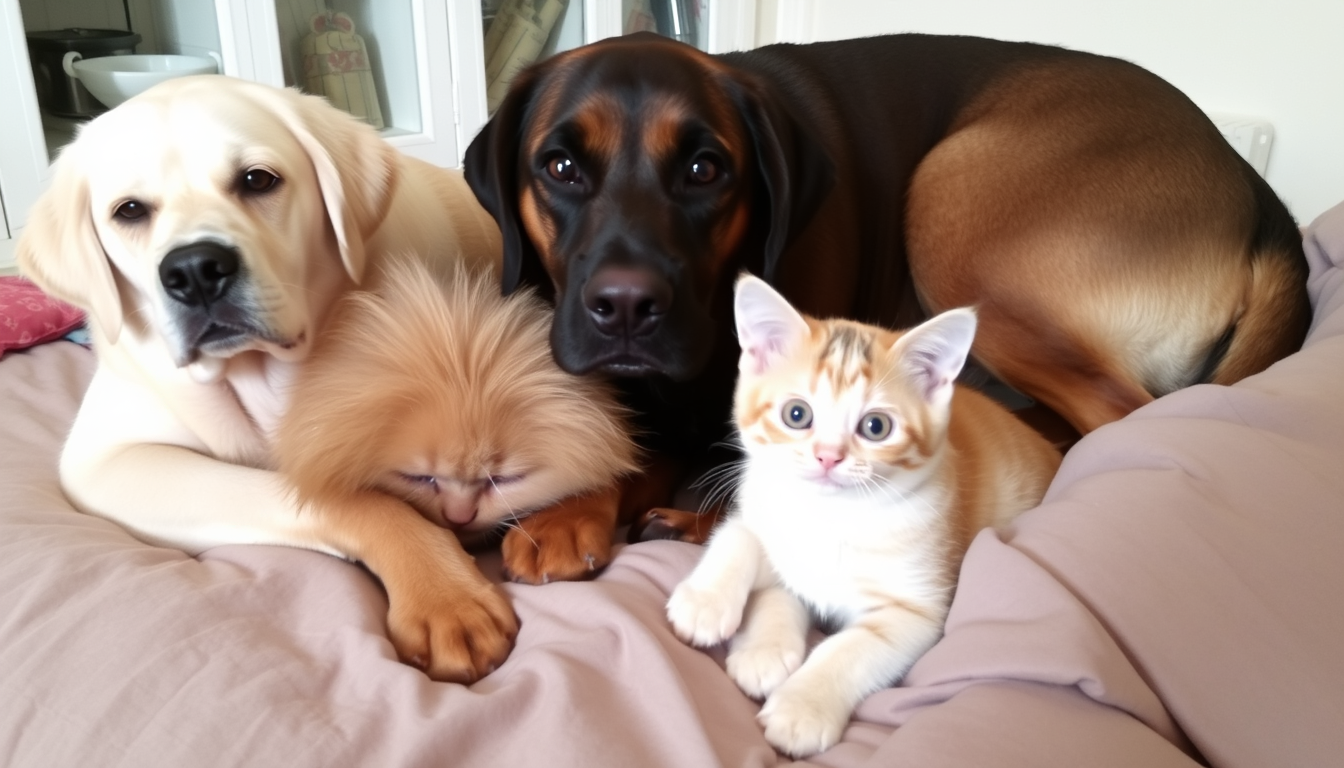
Du skal bare lave en one line billede/omrids af 2 labradorer en kat 1 yorkshire terrier og en broholmer der ikke er helt voksen
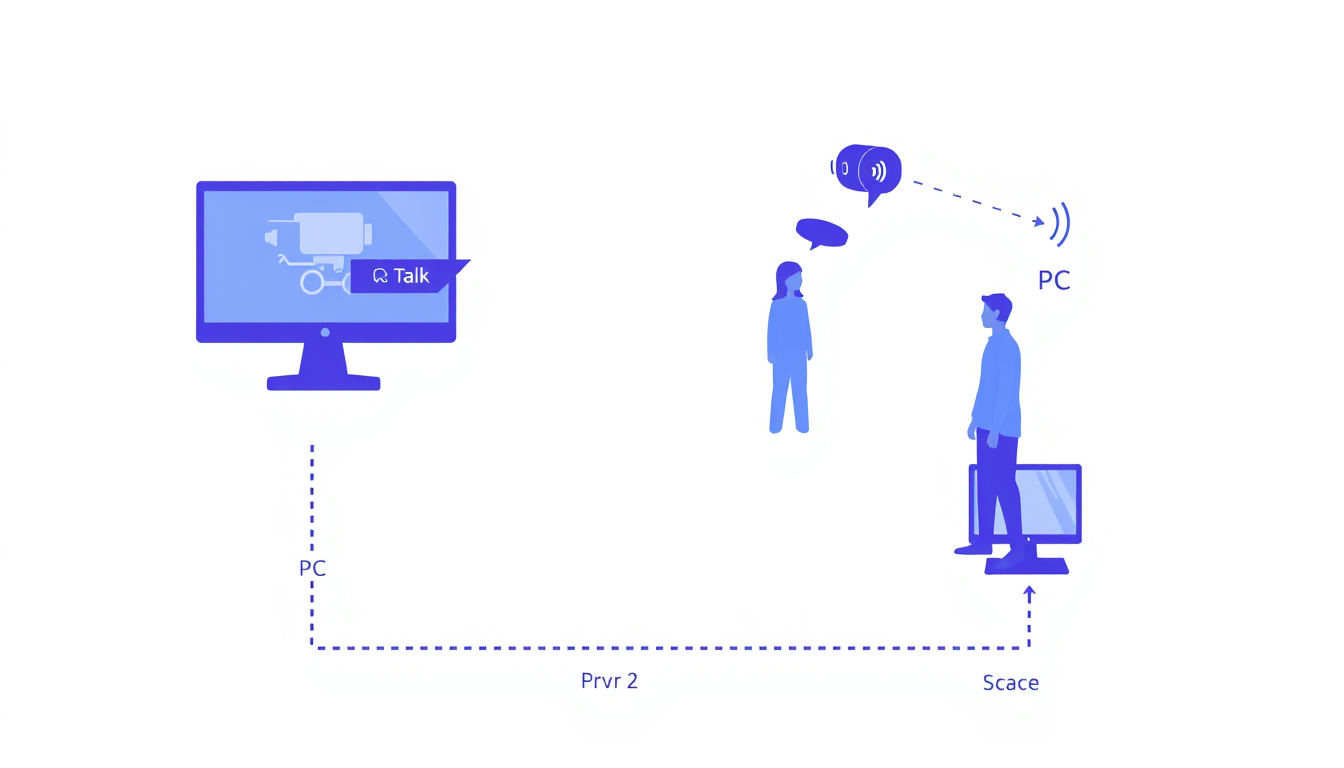
Create a clean 2D workflow illustration for an NVR camera monitoring system. Show Person 1 sitting at a PC, viewing a live camera feed from an NVR with a camera. On the PC screen, show a “Talk” button being clicked. Show Person 2 standing near the NVR camera and speaking. Use visible sound waves from Person 2 toward the camera, indicating the camera microphone captures their voice. Show the voice traveling through the NVR to the PC, with arrows: PC → Talk → NVR Camera → Person Speaks. Professional security-system UI, simple blue-purple style, white background.
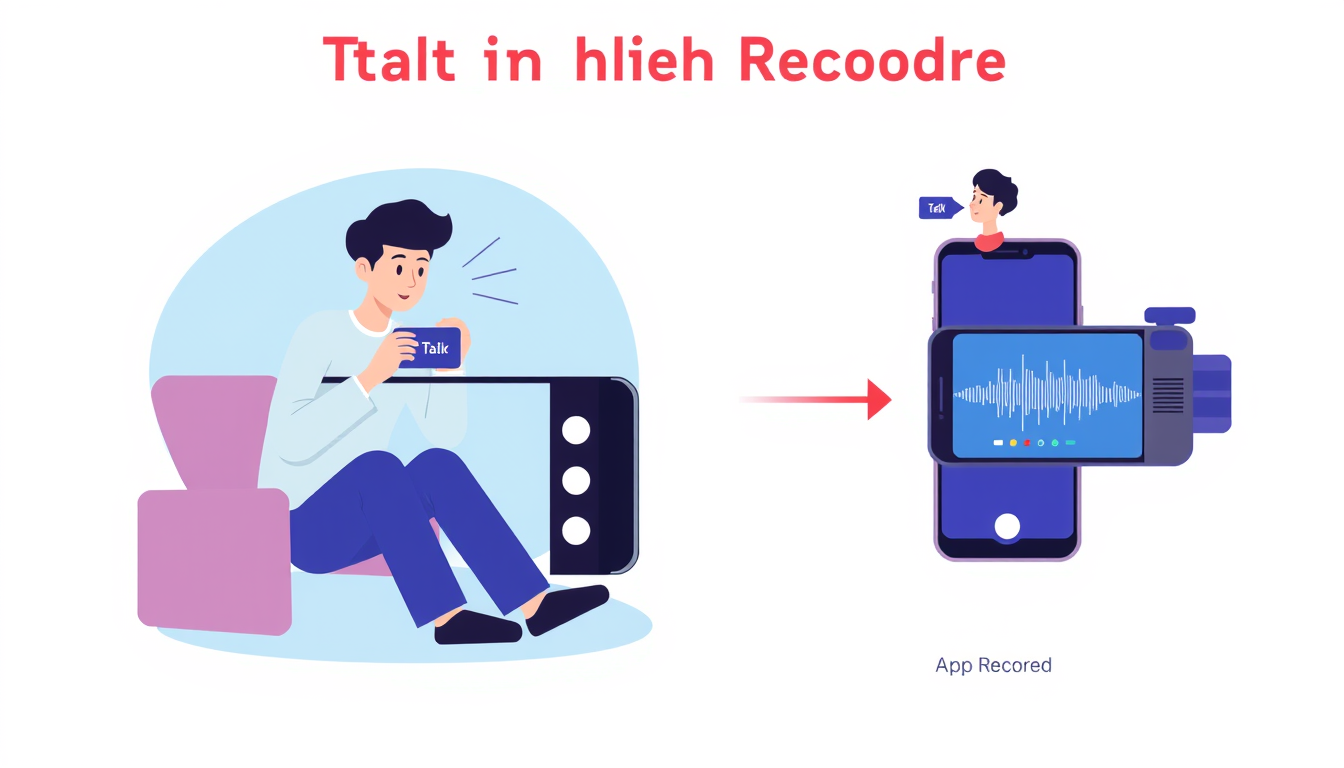
Create a clean 2D app feature illustration for “Talk in Dhua Recorder.” Show Person 1 sitting and recording with a smartphone/camera. Person 1 taps the “Talk” option on the recorder screen. Person 2 is standing nearby and speaking, with visible sound waves traveling from Person 2 toward the camera microphone. Show the camera capturing Person 2’s voice, with an audio waveform appearing on the recorder screen. Use arrows to clearly show the flow: Tap Talk → Person Speaks → Camera Mic Captures Voice → Voice Recorded. Modern, simple, professional blue-purple UI style.
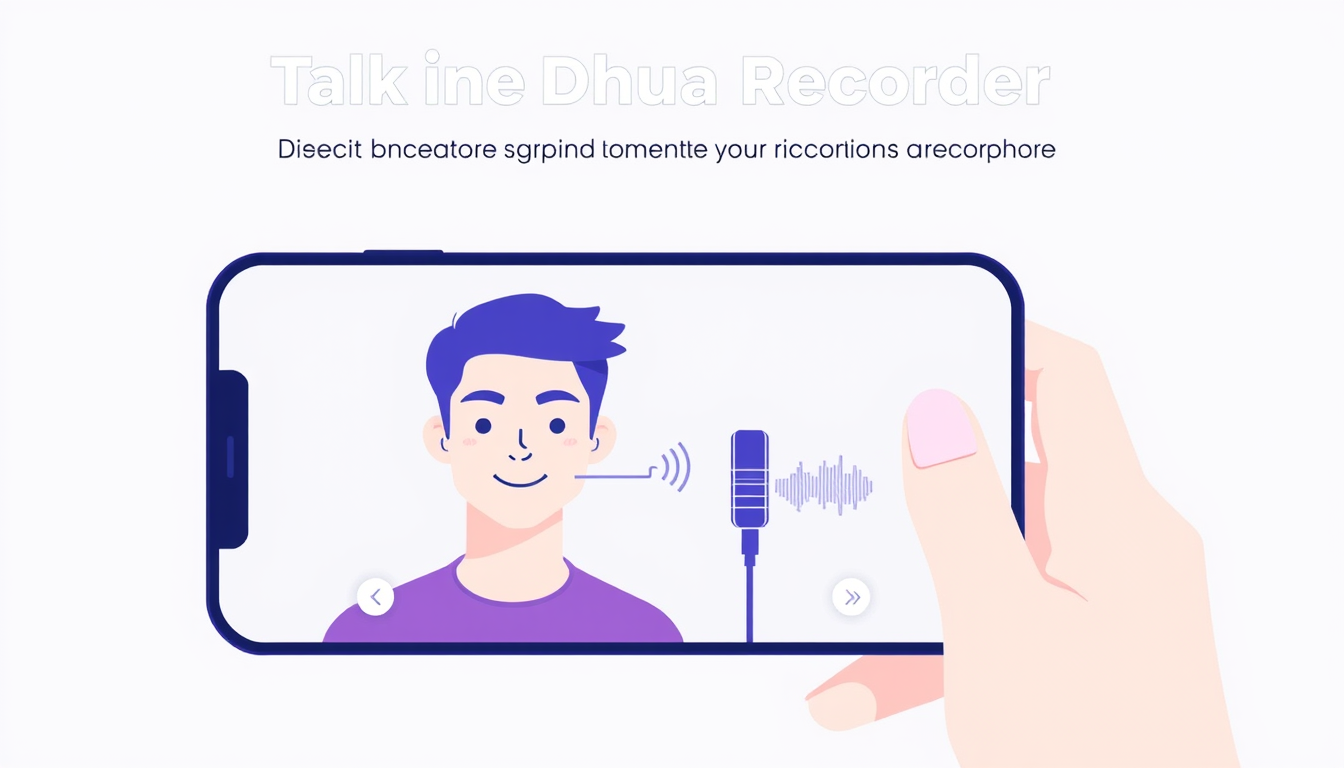
Create a modern mobile app feature illustration for “Talk in Dhua Recorder.” Show a person recording with a smartphone camera while speaking. Highlight the “Talk” button on the screen as active. Show sound waves traveling from the person’s mouth to the phone’s microphone, with an audio waveform on the screen. Clearly communicate that the user’s voice is captured through the camera microphone and included in the recording. Clean UI/UX style, blue-purple colors, professional and simple.
2. Talk Purpose: The Talk feature is used for two-way audio communication through the camera. Steps: 1. Open the Recording View. 2. Select the required camera. 3. Click the Talk button. 4. Allow microphone access if requested. 5. Speak through the microphone. 6. The voice will be transmitted through the camera speaker. 7. Click Talk again to stop the communication. Image: i need image based one aboce feature of live view
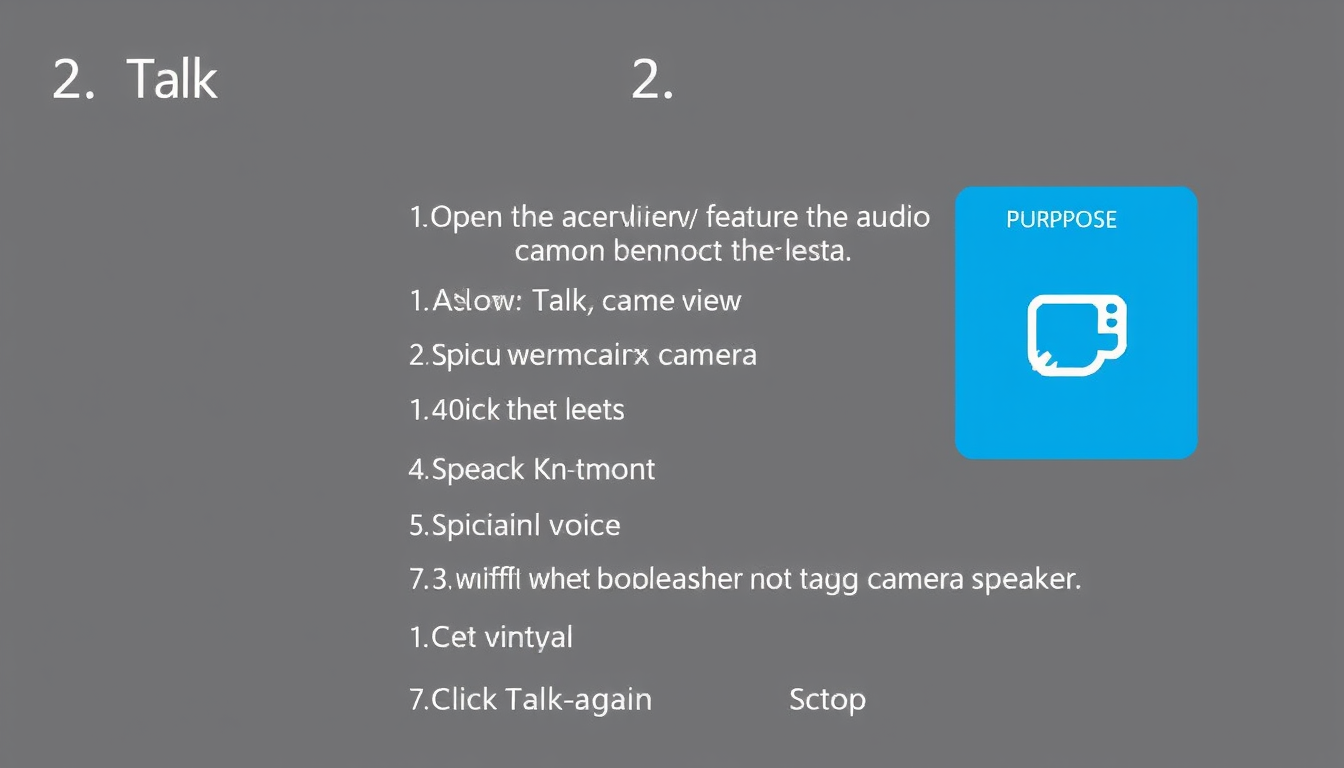
2. Talk Purpose: The Talk feature is used for two-way audio communication through the camera. Steps: 1. Open the Recording View. 2. Select the required camera. 3. Click the Talk button. 4. Allow microphone access if requested. 5. Speak through the microphone. 6. The voice will be transmitted through the camera speaker. 7. Click Talk again to stop the communication. Image:
Focused examples and prompt ideas
Start with the complete visitor wall above, then use these focused collections when you want a narrower subject and more prompt context.